
The Partners section is where you manage all the individual partners you collaborate with in BacklinkCRM. You can access this section by clicking on “Partners” in the sidebar.
Here, you can:
- Manage your list of partners.
- Import and export partner data in bulk.
- Create new partner profiles.
- Update and delete partner information.
- View detailed information for each partner.
Here’s a breakdown of the “All Partners” page, using the numbered points from the image:
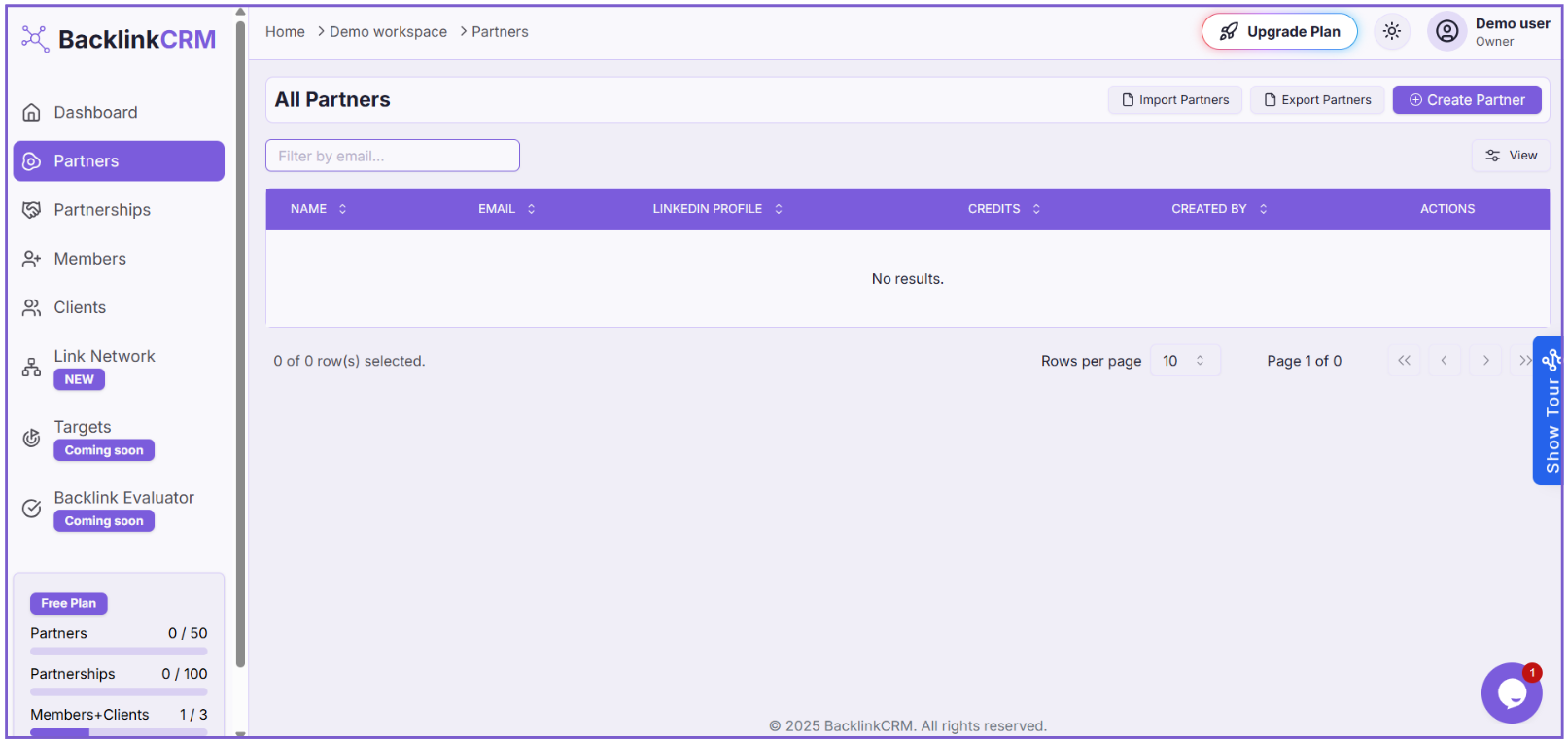
- Filter by email…: Use this search bar to find a specific partner by entering their email address.
- Import Partners: Click this button to import partners into your account using an Excel (.xlsx) file.
- Export Partners: Click this button to download an Excel (.xlsx) file containing data for all your partners.
- Create Partner: Click this button to go to the “Create Partner” page and add a new partner’s details manually.
- View: This indicates a way to view more detailed information about a specific partner. You will likely find this option in an “Actions” menu for each partner listed in the table.
- Table Headers: These are the headers for the columns in the partners table, showing information about each partner.
- Partners Table: This area will display a list of all your partners.
- Rows per page and Pagination Controls: Use these to control the number of partners displayed per page and navigate through multiple pages of partners.
- Pagination Controls: Use these controls to move between pages of the partners list, including going to the first, previous, next, or last page.
Note: Creating your partners here is the very first step you should take as a new user, as it’s essential before you can create partnerships, manage members, or use other features.