
When you launch your workspace in BacklinkCRM, you’ll land on this dashboard. It provides a high-level overview of your workspace data.
If your business type is an agency, you’ll see information related to your clients. If your business type is SaaS, you’ll see partners-dashboard instead of client.
Here’s a breakdown of the dashboard elements:
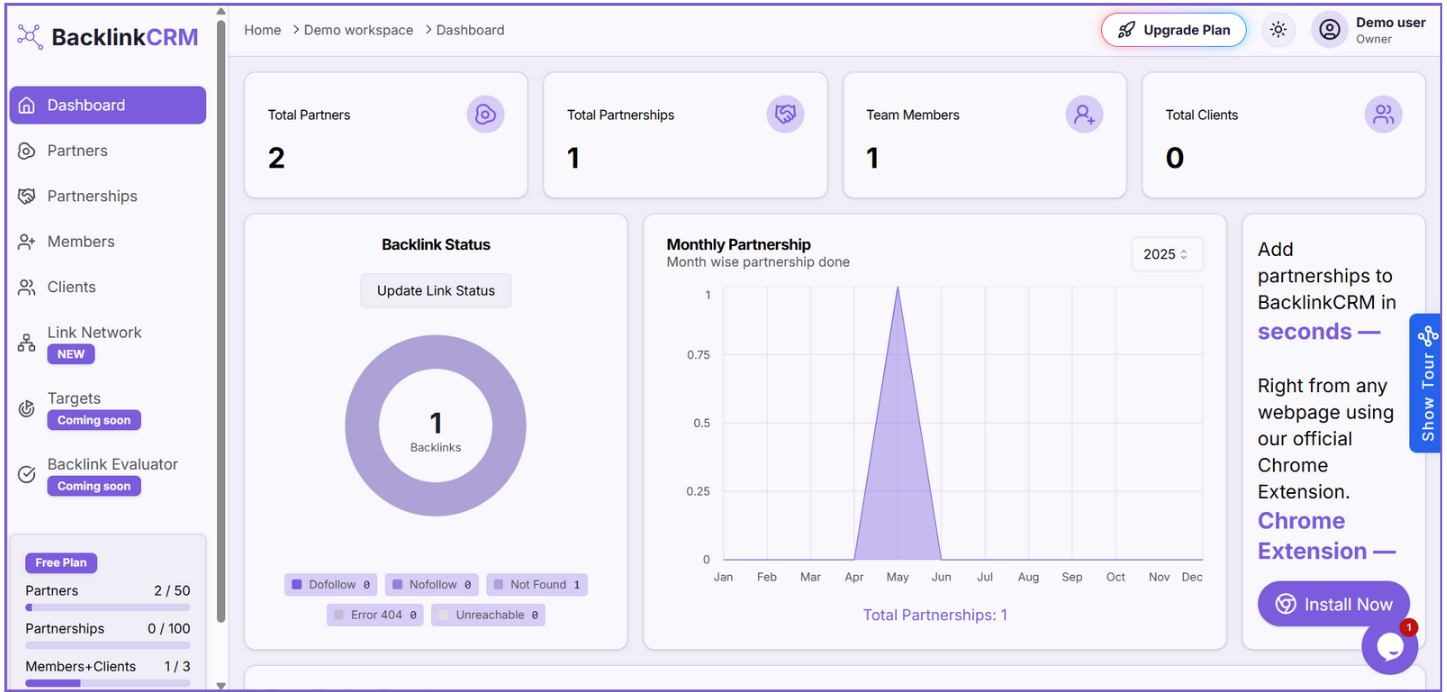
1. Total Partners: #
Displays the total number of partners in your workspace.
2. Total Partnerships: #
Displays the total number of partnerships created in your workspace.
3. Team Members: #
Displays the total number of team members in your workspace.
4. Total Clients: #
Displays the total number of clients in your workspace (or a partner dashboard if your business type is SaaS).
5. Backlink Status: #
Shows the current status of your backlinks. *Click the “Update Link Status” button to start crawling and get the latest link status about the backlinks.
6. Monthly Partnership: #
This graph shows the number of partnerships added each month.
7. Chrome Extension: #
BacklinkCRM Chrome Extension, allows you to quickly add partners and partnerships.
8. Show Tour: #
Click this button to start a walkthrough of the tool and get a basic understanding of how it works.
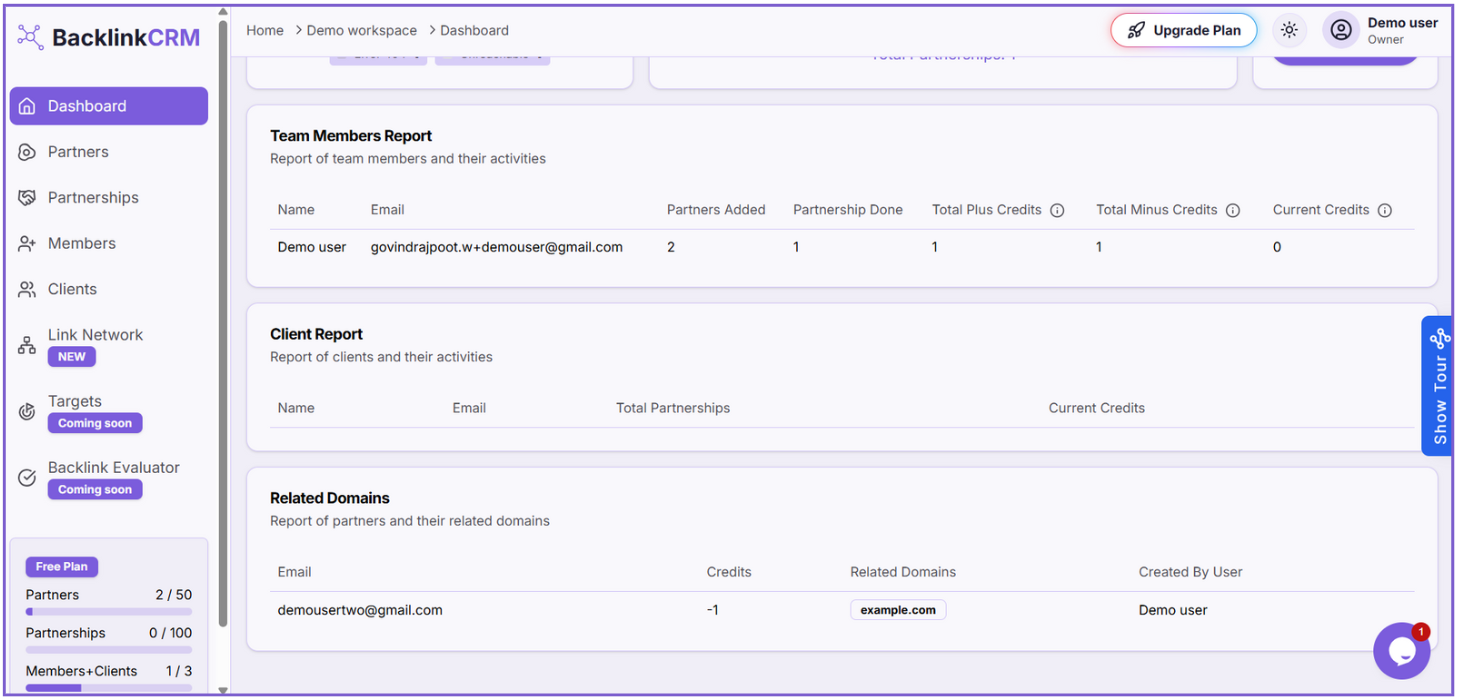
9. Team Members Report: #
Shows a report of team members’ activities, including the number of partners and partnerships they added and created, along with their plus credits, minus credits, and total credits.
10. Client Report: #
Shows a report of client details and the number of partnerships each client has participated in.
Note: You can’t see the Client Report when you choose the business type as SaaS.
11. Related Domains: #
Displays the domains related to each partner and the user who created the partner.