
Note : Update Partners Dashboard
To update a Partners Dashboard, click the three-dot menu (︙) > Edit, make changes, and click Update Partners Dashboard.
To update the details of an existing client, follow these steps:
Navigate to the All Clients section from your workspace dashboard. This page lists all your existing clients.
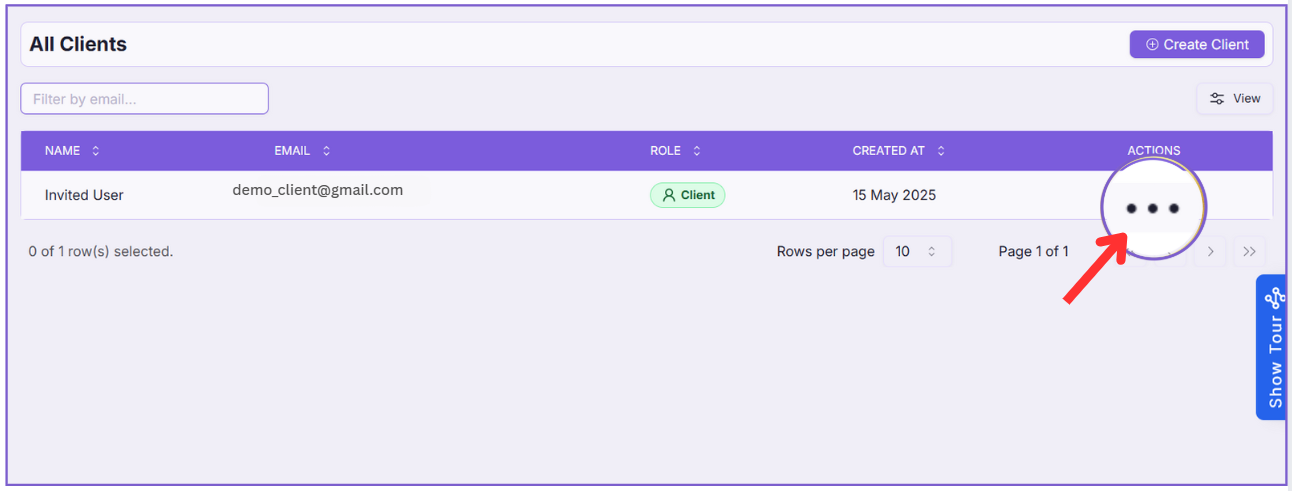
Step 1: Open the Action Menu #
Locate the client you want to update.
On the right-hand side under the “Actions” column, click on the three-dot menu (︙).
Step 2: Click “Edit” #
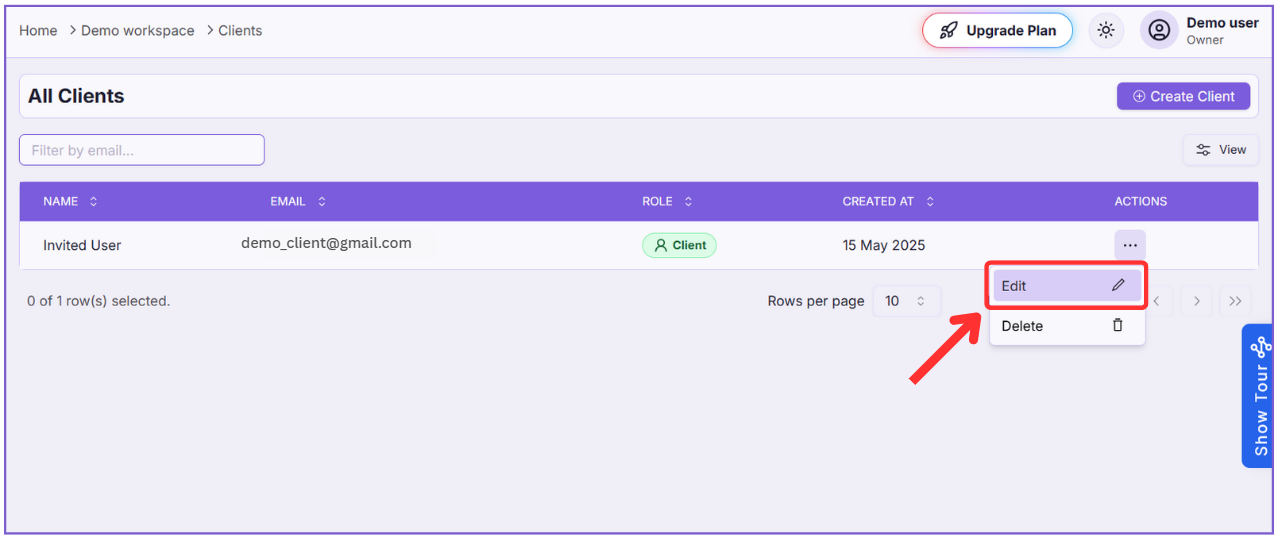
From the dropdown options, click on Edit.
Step 3: Update Client Details #
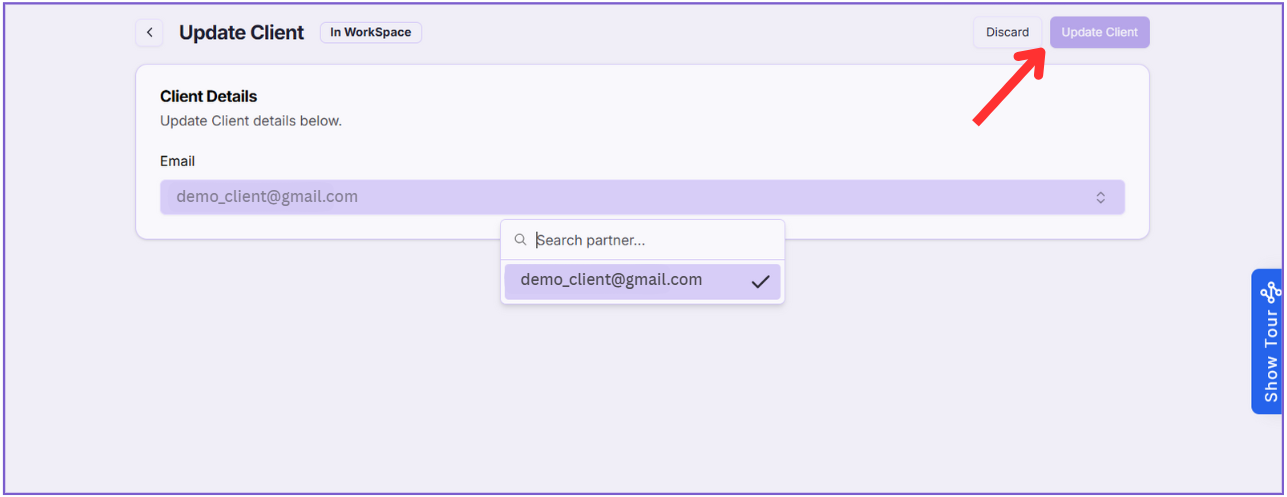
You’ll be redirected to the Update Client page.
- You can edit the email if required.
- You can also reassign the client to a different partner by selecting a new partner from the dropdown list.
Step 4: Save Changes #
Once the updates are done, click the “Update Client” button on the top-right corner of the page to save the changes.
That’s it! Your client’s information has now been successfully updated.