
To create a new partnership in BacklinkCRM, you need to have at least two partners already added to your account.
Step 1: Access the Create Partnership Page:
#
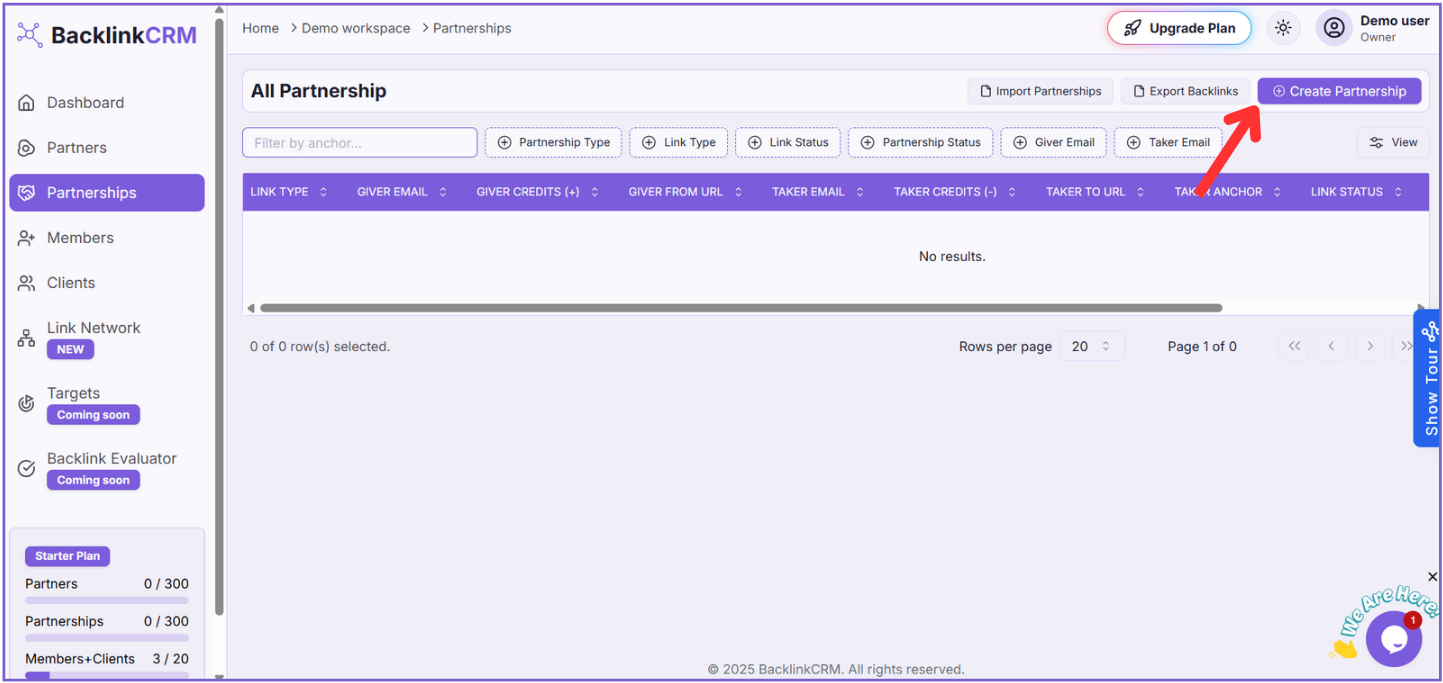
You will be taken to the “Create Partnership” page after clicking the “Create Partnership” button in the Partnerships section.
Step 2: Fill in the Partnership Details:
#
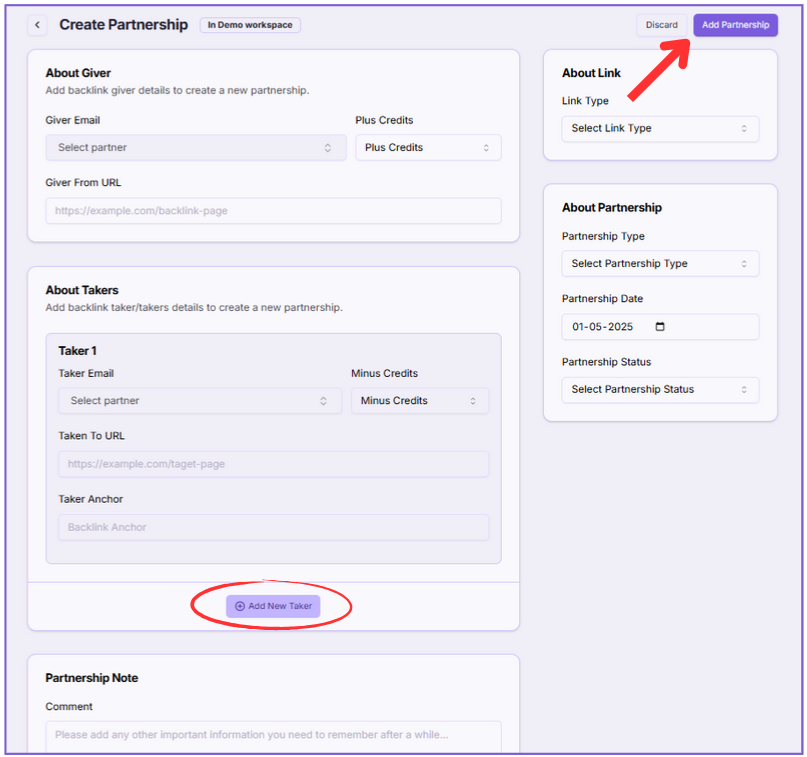
Here’s a breakdown of the information to provide on the “Create Partnership” page:
About Giver:
#
- 1. Giver Email: Select the partner’s email who will give the backlink. (Must be an existing partner).
- 2. Plus Credits: Enter internal credits the “Giver” receives for the backlink. (For tracking).
- 3. Giver From URL: Enter the exact URL on the Giver’s site with the backlink to the Taker’s site.
About Takers:
#
- 4. Taker Email: Select the partner’s email who will receive the backlink. (Must be an existing partner).
- 5. Minus Credits: Enter internal credits the “Taker” uses for the backlink. (For tracking).
- 6. Taken To URL: Enter the exact URL on the Taker’s site receiving the backlink.
- 7. Backlink Anchor: Enter the exact anchor text for the backlink on the Giver’s page.
Adding More Takers:
- To add more “Takers” for a single “Giver,” click Add New Taker and fill in their details.
About Link:
#
- 8. Link Type: Choose the backlink type:
- Guest Post: Backlink in a guest post on the Giver’s site.
- Link Insertion: Backlink inserted into existing Giver content.
- Exchange Link: Reciprocal link exchange
About Partnership:
#
- 9. Partnership Type: Select the partnership agreement type:
- Free: Non-monetary or mutual agreement.
- Credit: Involves internal credit exchange.
- Paid: Involves a financial payment.
10. Partnership Date: Select the partnership start date or when the backlink is intended to go live.
11. Partnership Status: Select the current partnership status:
- Paid: Payment for the partnership is complete.
- Live: The backlink is live.
Partnership Note:
#
12. Comment: Add any important notes or internal comments about the partnership here.
13. Saving the Partnership: #
- Once you have accurately filled in all the fields:
- Click the Add Partnership button located in the top right corner of the page.
- If you decide not to create the partnership, you can click the Discard button.
- After successfully adding the partnership, you will typically be redirected to the “All Partnerships” page, where the new partnership will be listed with the information you provided.