
Importing partners helps you create multiple partner profiles at once using an Excel (.xlsx) file. This is especially useful for bulk onboarding.
Step 1: Open the Import Popup #
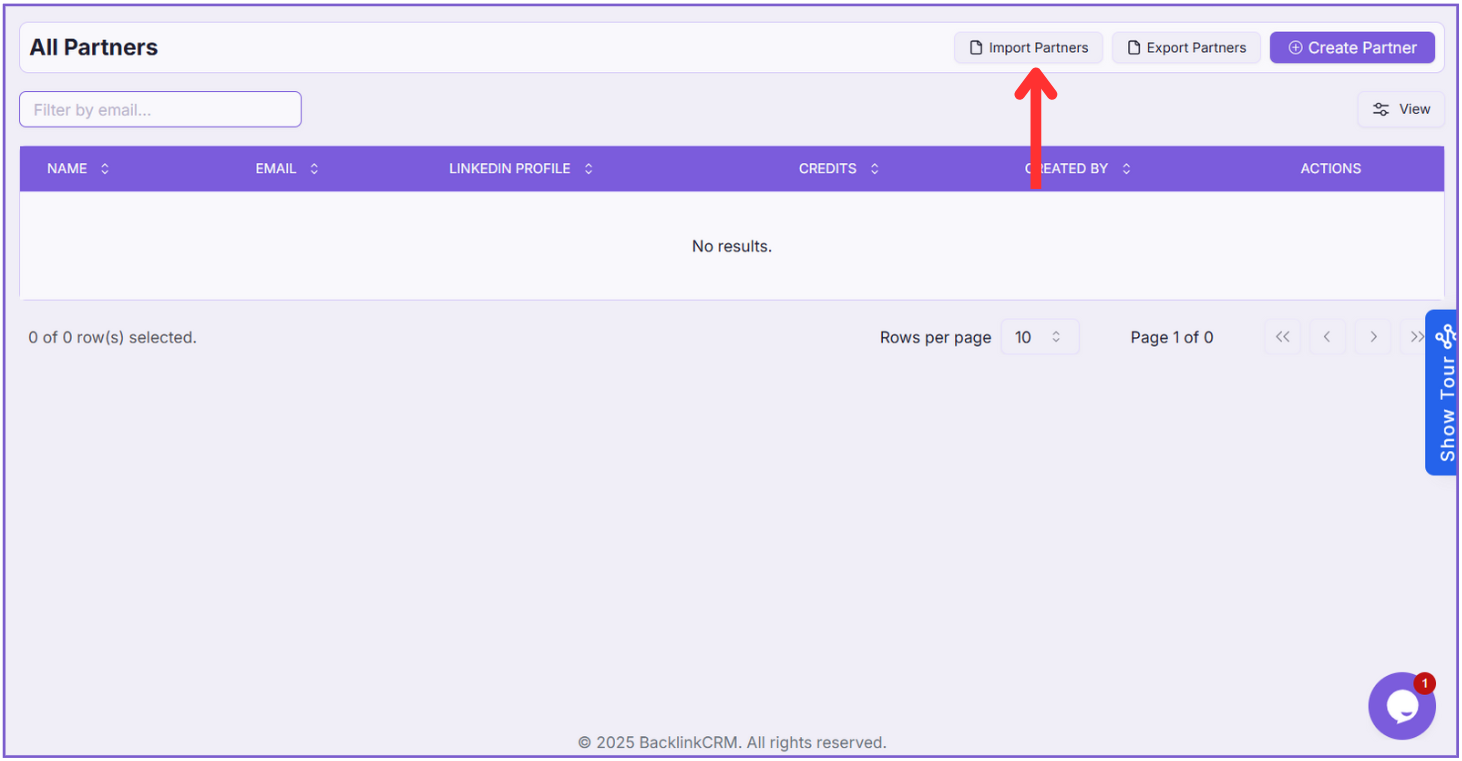
Click the Import Partners button on the All Partners page. This will open a popup where you can upload your Excel file.
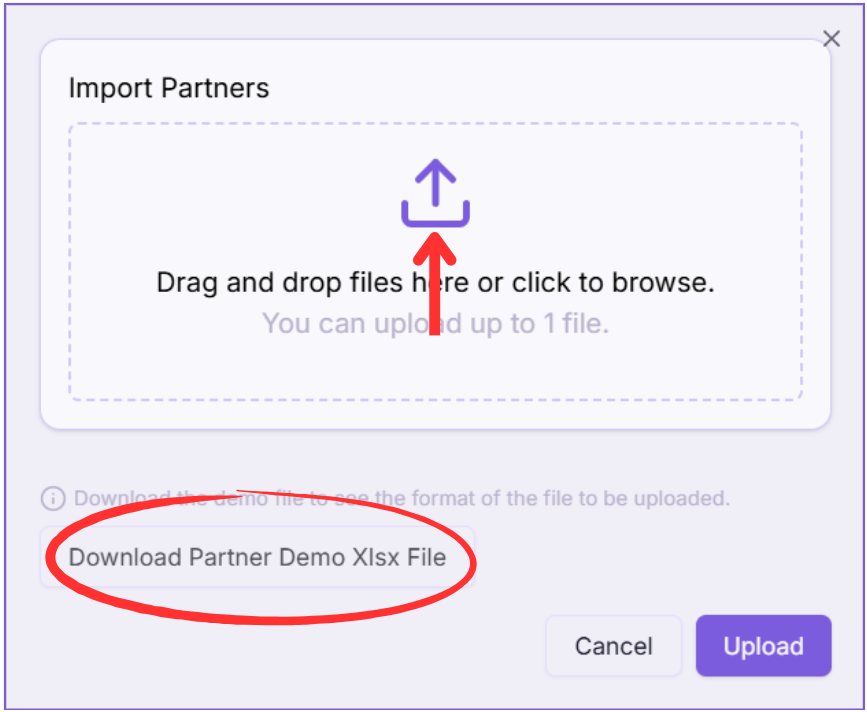
Download the Demo import File #
Inside the popup, click the Download Partner Demo Xlsx File button.
This file shows the correct format and structure needed for a successful import.
Step 2: Upload the File #
After preparing your XLSX file:
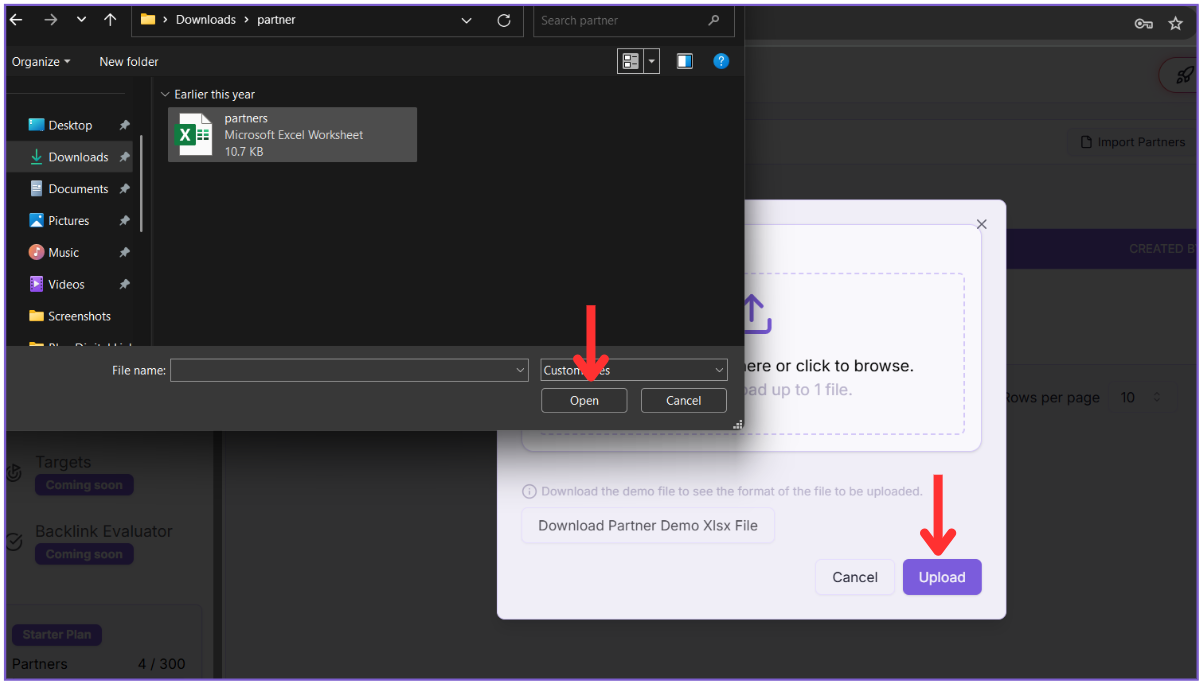
- Click or drag-and-drop the file into the upload area.
- Ensure only one file is selected.
- Click the Upload button to complete the import.
If anything is wrong with the data or structure, an error message will guide you to fix it.
How to Create the Partner XLSX File #
To successfully import partners, you must follow the correct structure in your Excel sheet. Here’s how to create the file:

Required Fields
These columns must be present and filled for each partner:
- Name – Full name of the partner
- Email – Partner’s email address
If any of these are missing or incorrect, the import will fail.
Optional Fields
These fields can be included but are not required:
- Company Name – Name of the partner’s company
- LinkedIn Profile – LinkedIn profile URL
- Comment – Notes or remarks about the partner
Final Tip #
If you’re unsure about the structure, always start by downloading the demo XLSX file from the Import popup. Use it as a template to avoid errors.
Note : For a successful import, your partners import file should be named either partners or partner. The file format must be the same as the demo XLSX file you can download from the import section.