
To begin using BacklinkCRM effectively, your first step is to add partners. These are the websites or contacts you’ll work with for backlink exchanges. You must create or import partners before you can manage partnerships, members, or clients/partners-dashboard.
How to Create a Partner #
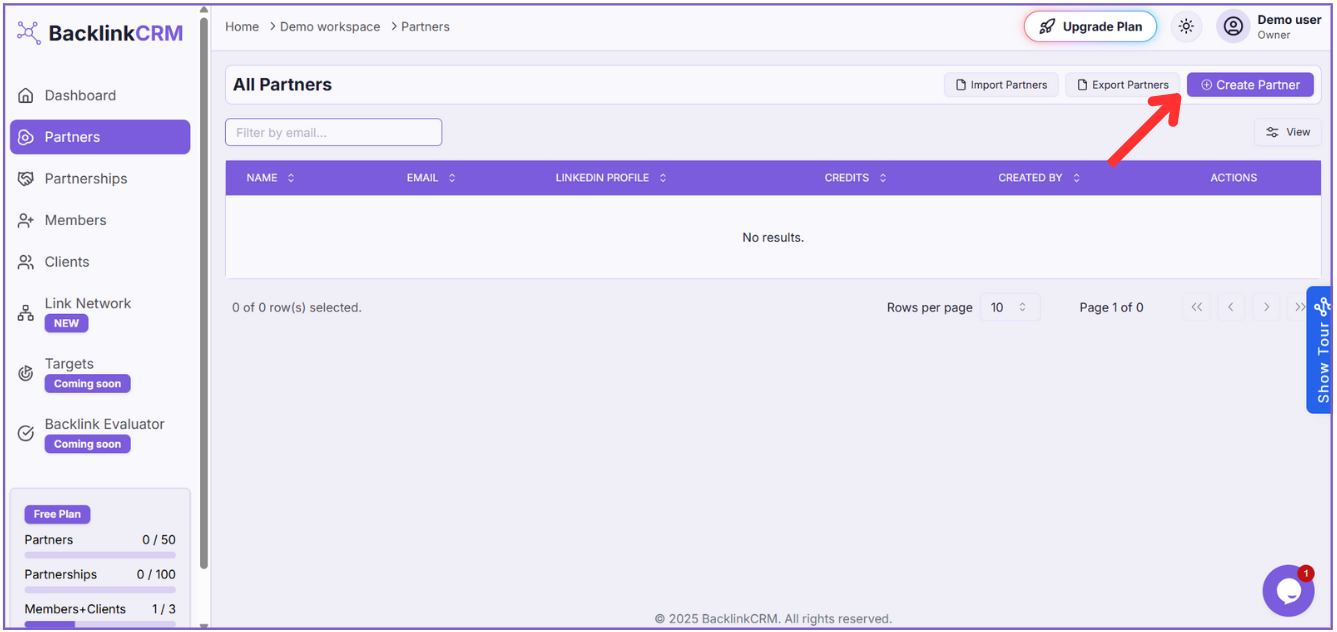
Step 1: Go to the Partners Page #
Click Partners from the sidebar.
Step 2: Click “Create Partner” #
On the top-right, click the Create Partner button.
Step 3: Fill in the Partner Details #
Complete the form with the following fields:
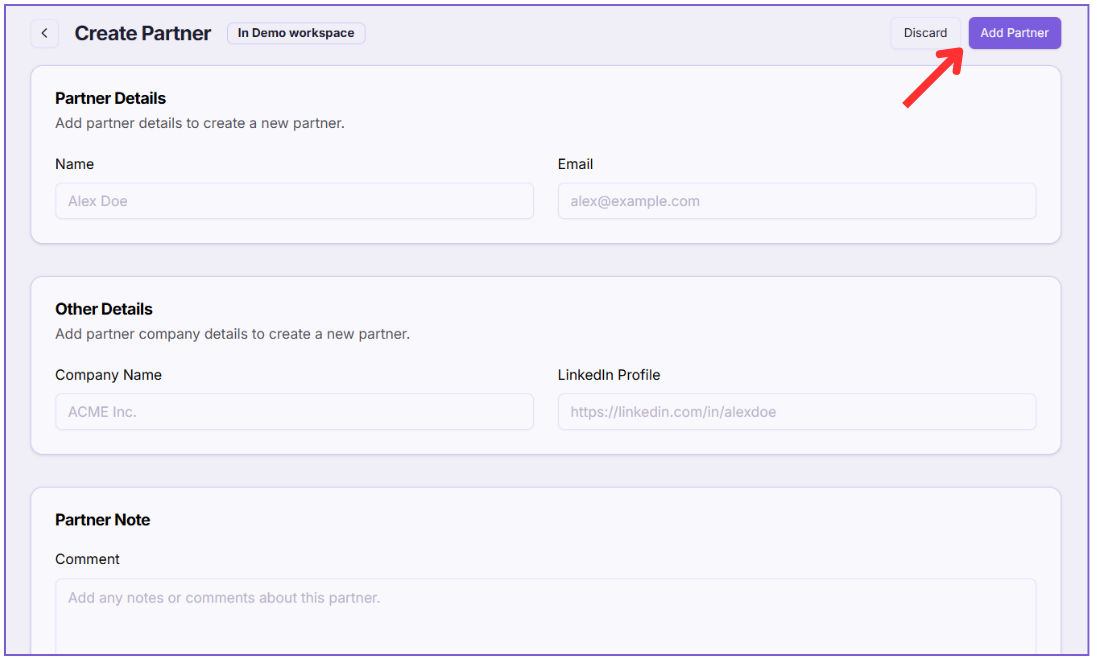
- Name
Add the full name of your partner. This helps you easily recognize who you’re working with. (Required). - Email
Enter the partner’s email address. It will be used for communication and tracking. (Required). - Company Name
Write the name of the partner’s company. It helps you keep things organized. (Required). - LinkedIn Profile
You can add a LinkedIn profile link to know more about the partner. (Optional). - Comment
Add any notes or reminders about this partner. Useful for keeping extra details. (Optional). - Click “Add Partner”
Once the form is filled, click Add Partner to save.
Note: Creating a partner is the first and required step before managing partnerships, adding members, or adding clients/partners-dashboard.